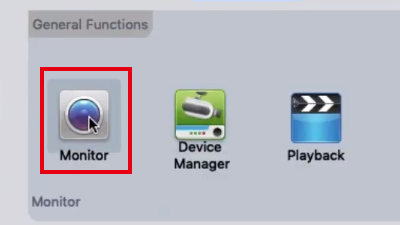
Before watching Birdhouse live video, you will need to install our free Linux software. The software only supports x86 CPU, it doesn’t support ARM. If you are using a bird box camera with WiFi connectivity, connect the camera to your WiFi network before you try to watch it on PC computer. The antivirus software may block the connection between the PC software and the IP birdhouse camera. You may need to add the VMS to the white list of your antivirus software if the PC software doesn’t discover your online camera.
1. First, download and install the PC software with the below URL.
https://green-backyard.com/wp-content/uploads/2025/01/VMS_1.0.1.1.amd64.zip
2.Next, click the zip file and select“Extract”to unzip the file.
3. Right-click the file and select “Open with Other Application” and Select “Software Install”.


4. You will be redirected to the install app, click the “Install” button to complete the installation.

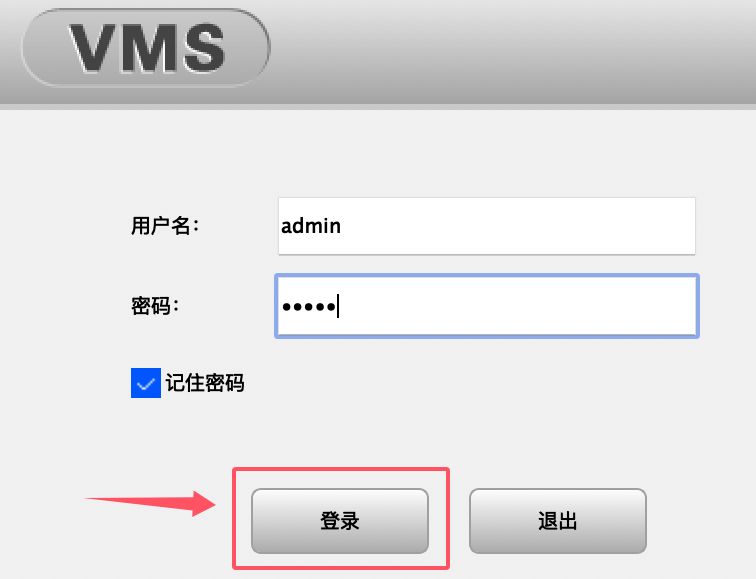
5. Click the VMS icon. In the login prompt, click the button on the left. Now click Cancel below. Let’s select the Language.

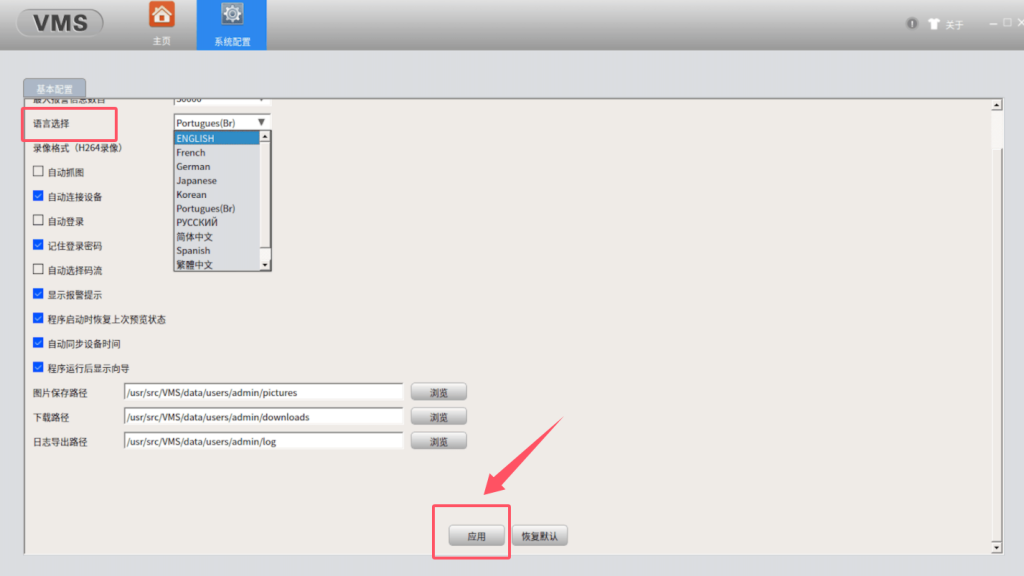
6. Click the System Config, and select the Language. Scroll the screen to the bottom, and click Apply to Save. The VMS will restart, and you will see the correct language.

7. In the main page, go to“Device Manager”. In the next screen, wait for a few seconds, The software will discover your camera automatically and listed on the first row.

8. Next Tick the check box in front of the IP address to select the camera you would like to add to the software. Click
“Add”button to confirm.

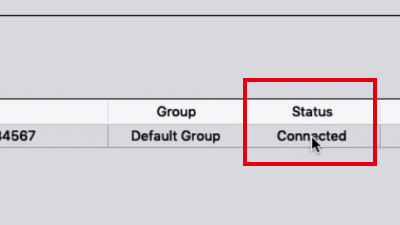
9.Next, your camera’s IP address will appear on the 2nd row. Check the indicator status under “Connect”. If the status display “Connected”. The camera has been added to the CMS5 software successfully.
NOTE: the default password of the camera is blank (no password), Once you add the password for the camera, you will need this password to access the camera on both PC software and mobile app. If you forget the password, press and hold the reset button next to the micro SD card slot for 15 seconds, it will reset the camera back to factory default. If there’s no reset button on your camera, run this reset tools to reset the camera.
10. Now you can Return to Home. Click the camera name in the device list. There is a red dot appear on the camera icon, and the live video will be ready on one of the window.